 raft
raftConnecting gogcli to multiple Google accounts
gog (gogcli) is a CLI that talks to Gmail, Drive, Docs, Calendar and the rest of the Google Workspace API. I use it daily on my work account, and I wanted to plug in my personal Gmail to edit a shared document.
It looked like a one-line gog auth add and it turned out to be a small ball of yarn 🧵: a personal @gmail.com account can't reuse an organization's OAuth client. Here's the full path, from the concept down to the two 403 errors you'll definitely hit.
The model: one OAuth client per context
gog stores one refresh token per account, and each account is tied to an OAuth client. You can see it in the config:
gog auth credentials list
# CLIENT   PATH                                            DOMAINS
# default  …/credentials.json
# gybe     …/credentials-gybe.json

cat "~/Library/Application Support/gogcli/config.json"
# { "account_clients": { "work@your-domain.com": "gybe" } }
The default client was set to "Internal" — restricted to members of the Workspace organization. A personal account is rejected outright. The clean fix: give it its own OAuth client, inside a Google Cloud project you own.
→ OAuth docs: https://developers.google.com/identity/protocols/oauth2
1. Create a Google Cloud project
Signed in with the personal account, create a dedicated project at https://console.cloud.google.com/projectcreate.
Project name : Google CLI
Organization : None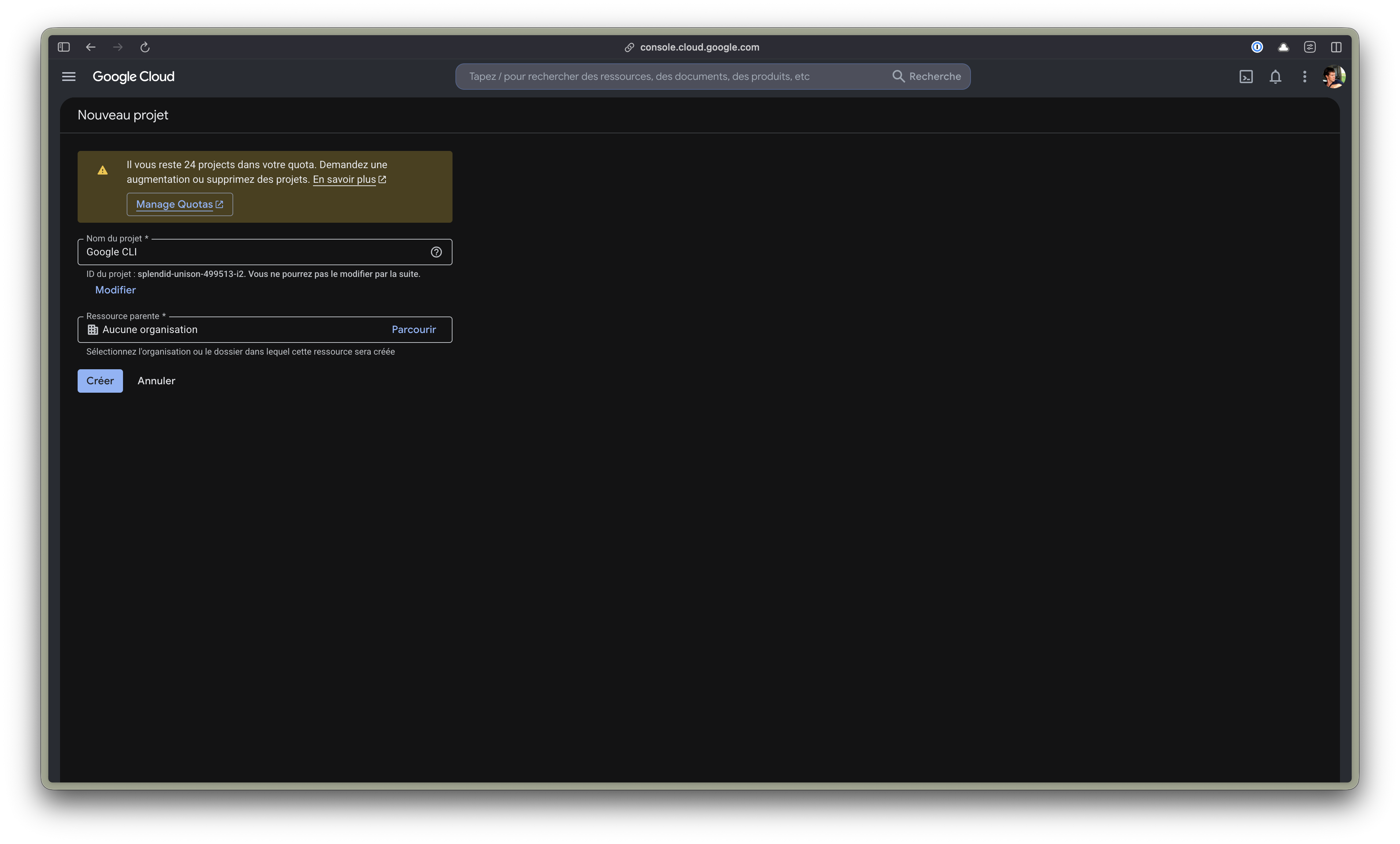
2. Enable the APIs gog needs
Enable the APIs matching the services you'll use — at minimum Docs and Drive:
- Google Docs API → https://console.cloud.google.com/apis/library/docs.googleapis.com
- Google Drive API → https://console.cloud.google.com/apis/library/drive.googleapis.com
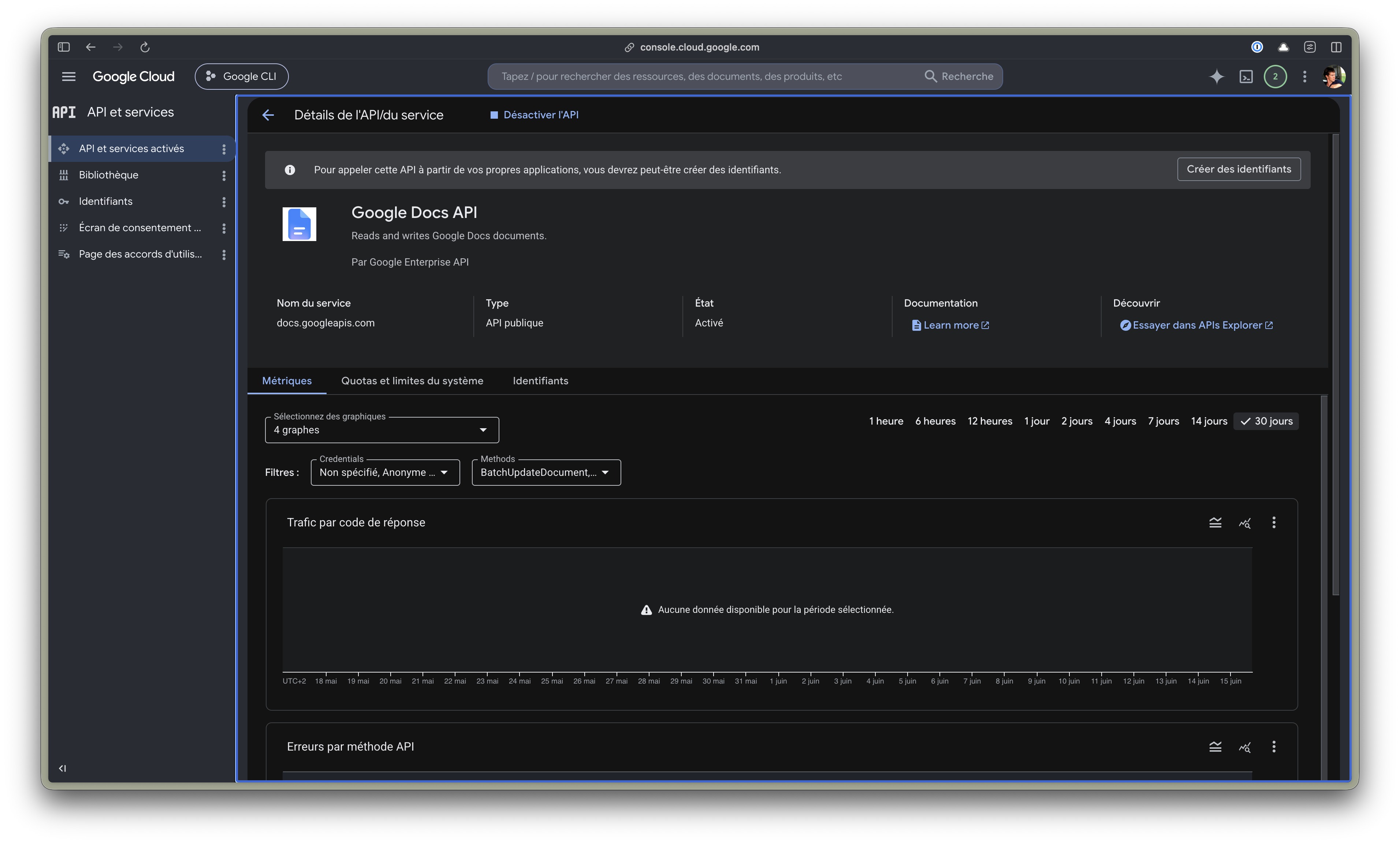
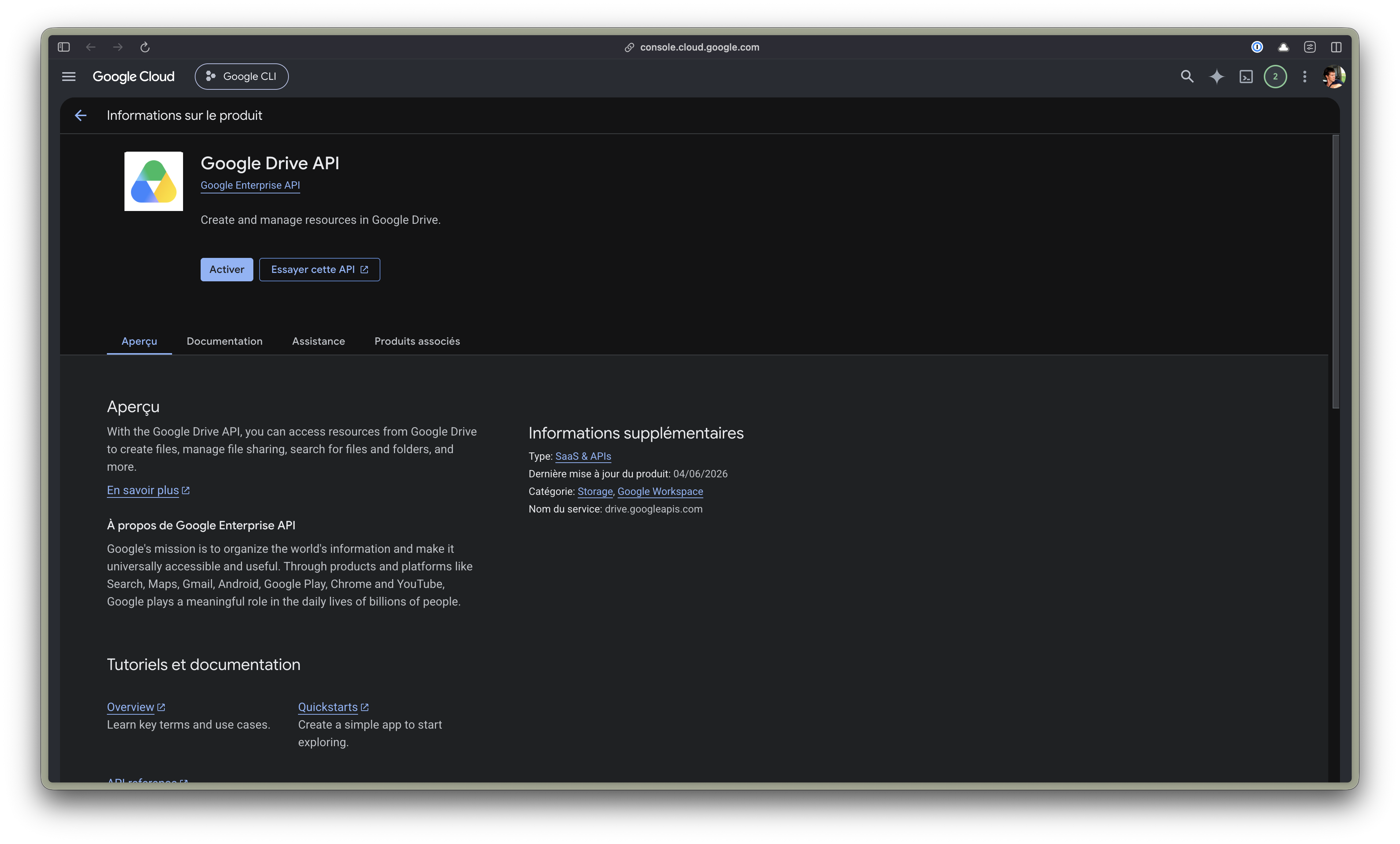
If you skip this, auth succeeds but the first call returns 403 accessNotConfigured: API has not been used in project … before or it is disabled.
3. Configure the OAuth consent screen
Head to Google Auth Platform → https://console.cloud.google.com/apis/credentials/consent. On the first visit the screen is empty — click Get started.
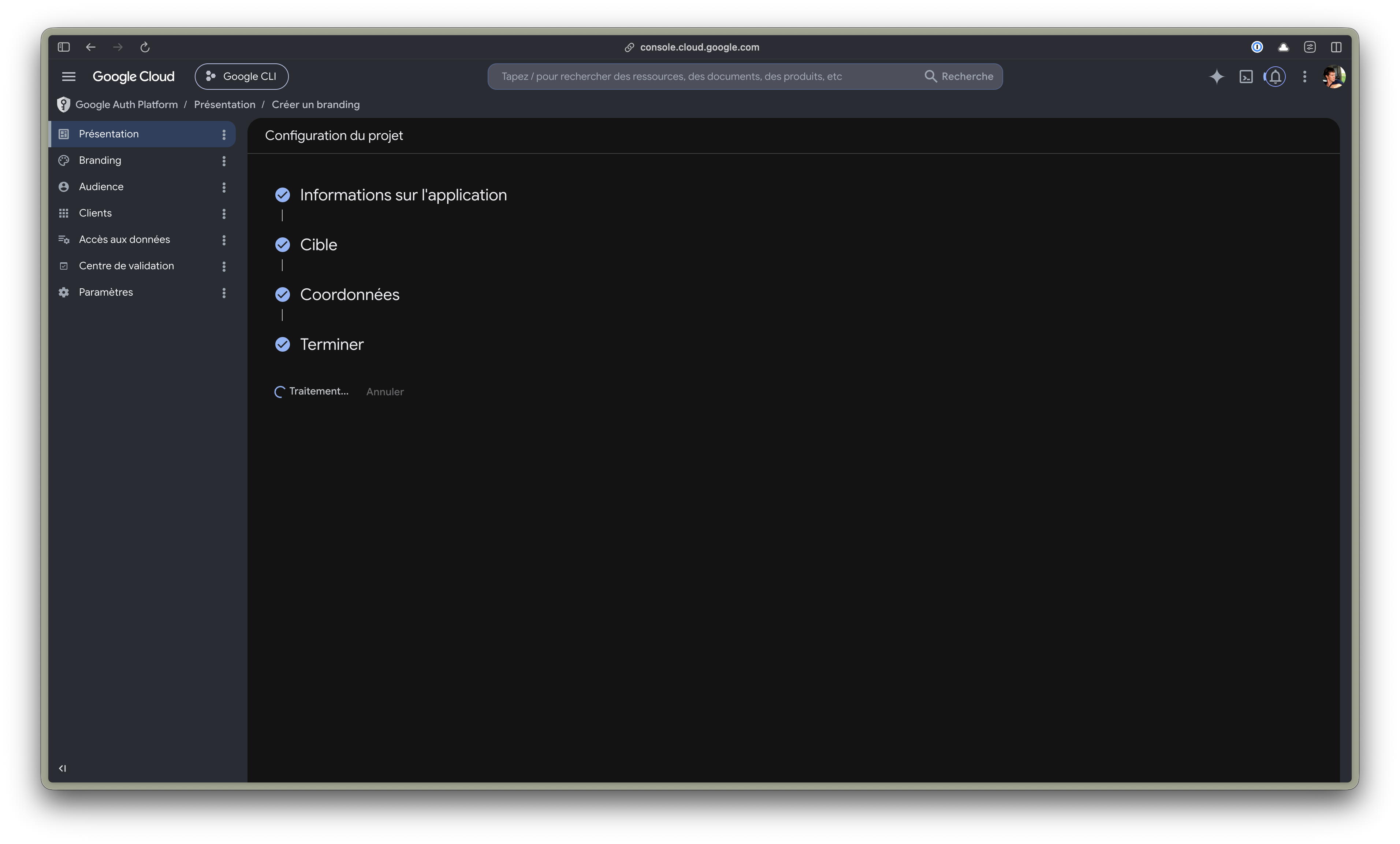
Fill in the minimum (app name, support email, developer contact) and pick user type External. This is the key point: "External" allows @gmail.com accounts, "Internal" doesn't.
→ Reference: https://support.google.com/cloud/answer/10311615
4. Create the "Desktop app" OAuth client
Once the platform is configured, create the OAuth client. gog is a command-line app, so the type is Desktop app.
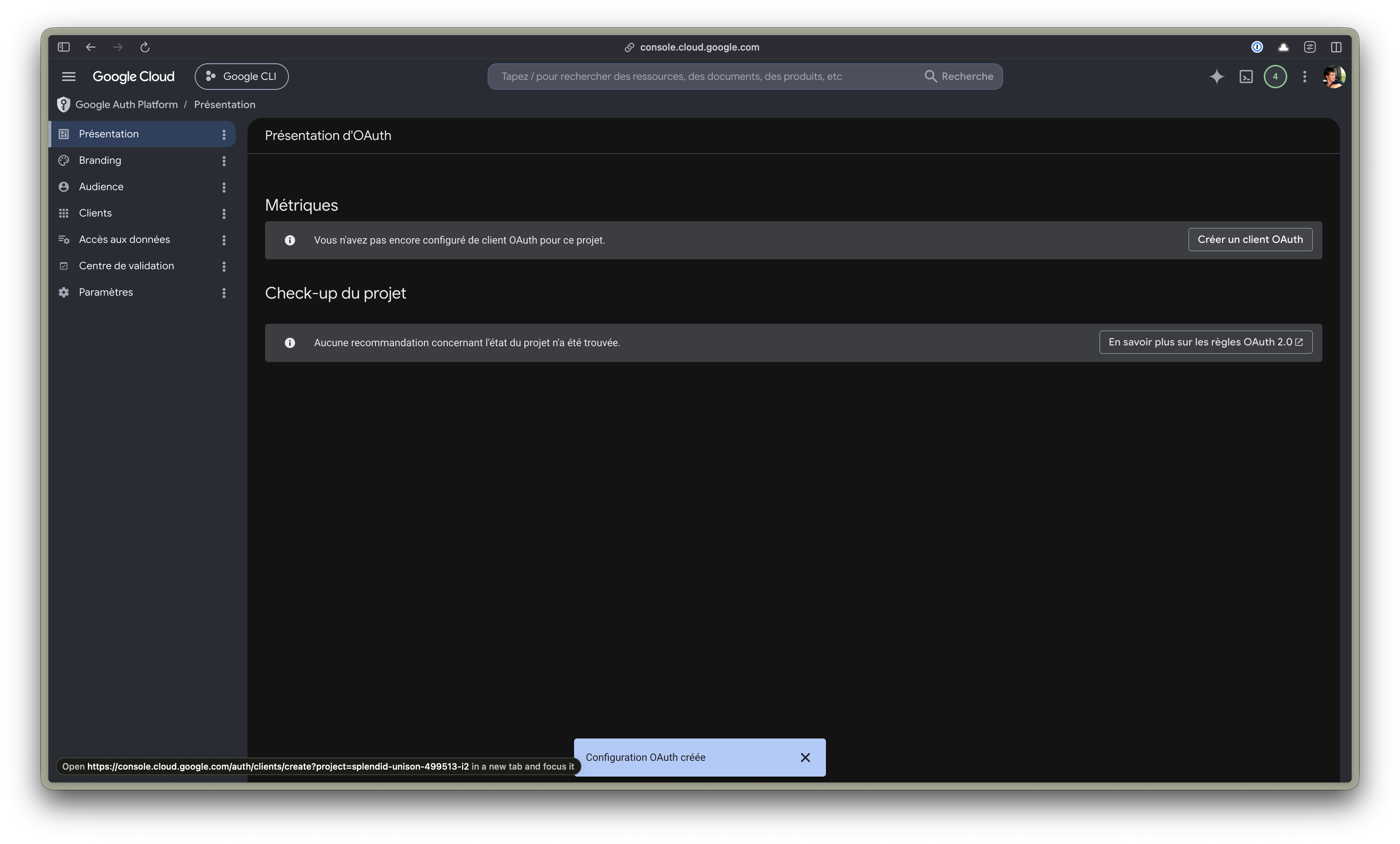
Download the client_secret_….json file at the end — that's what we'll hand to gog.
5. Add the account as a test user
As long as the app is in Test mode (and it can stay there for personal use), only declared test users can authenticate. Go to the Audience tab → Test users → Add users, then add your personal address. It must show up in the list:
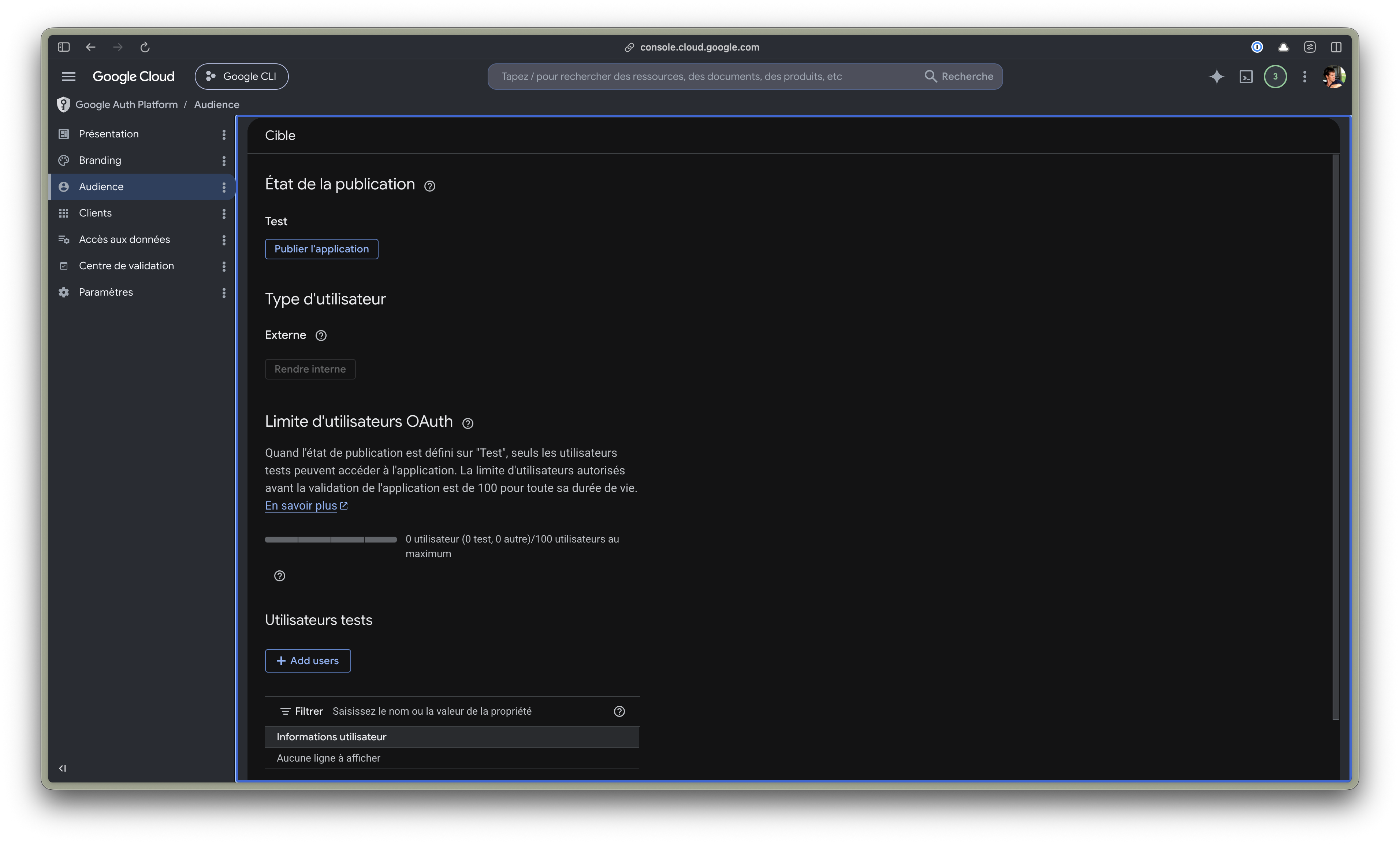
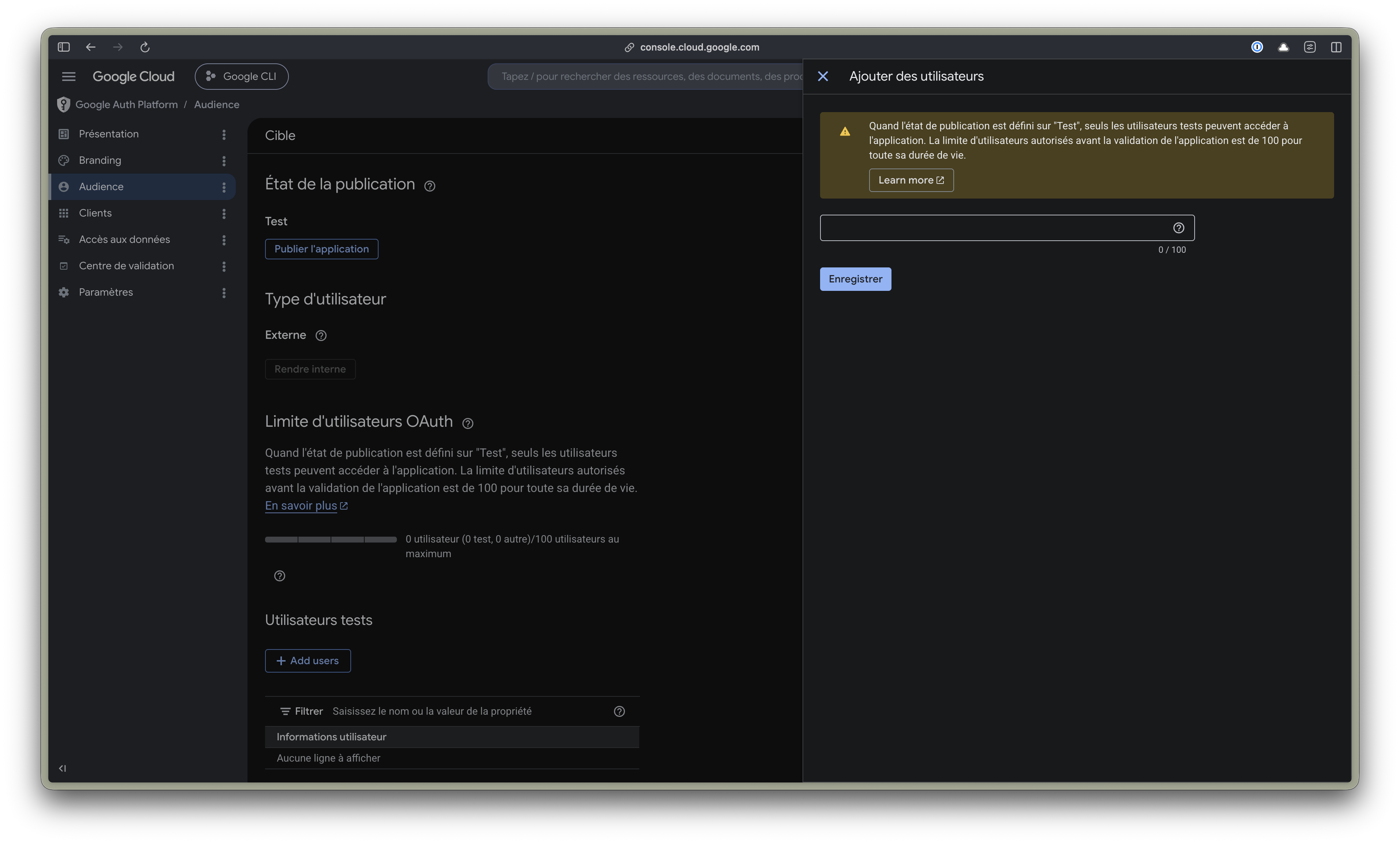
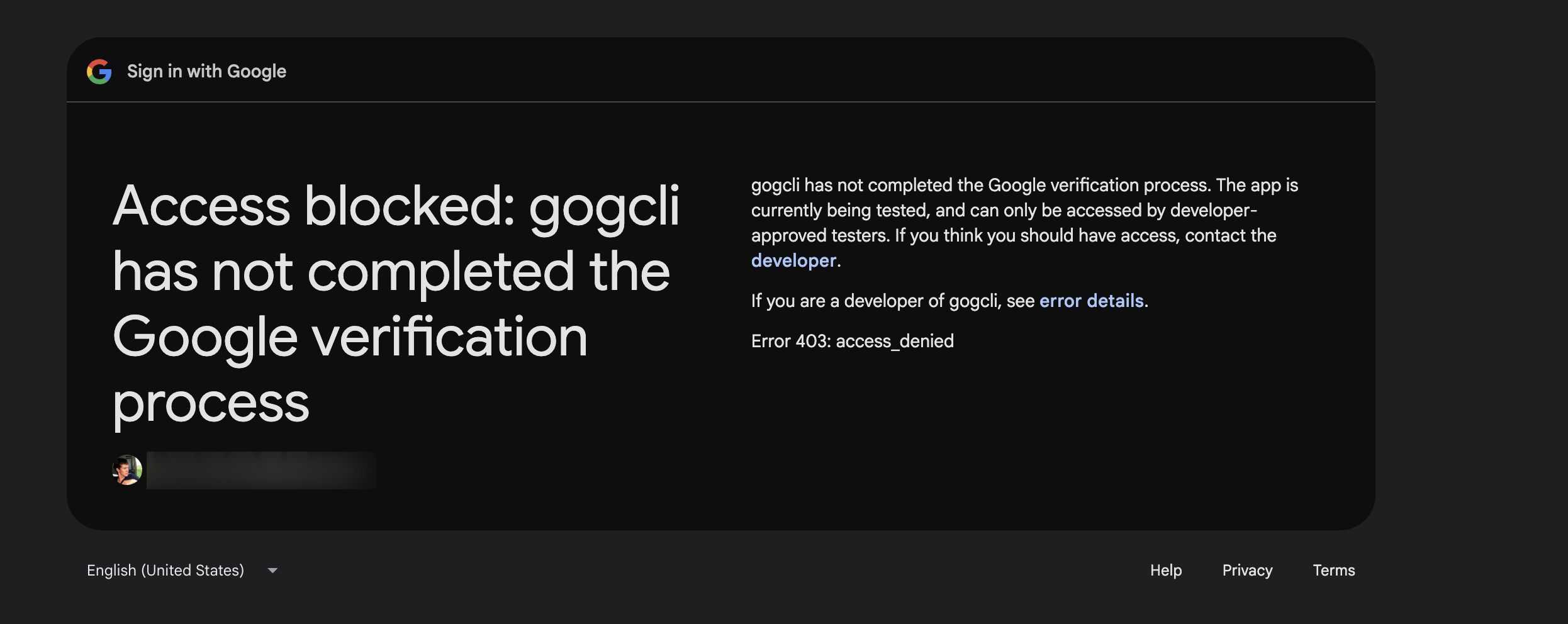
Forgetting this step gives the access_denied error described below.
6. Register the client in gog and authenticate
Two commands. The first registers a new client (named perso here), the second runs the OAuth flow for the account:
gog auth credentials set ~/Downloads/client_secret_*.json --client perso
gog auth add perso@gmail.com --client perso --services docs,drive
The browser opens with a "Google hasn't verified this app" warning — that's normal for a Test-mode app you own. Advanced → Continue.
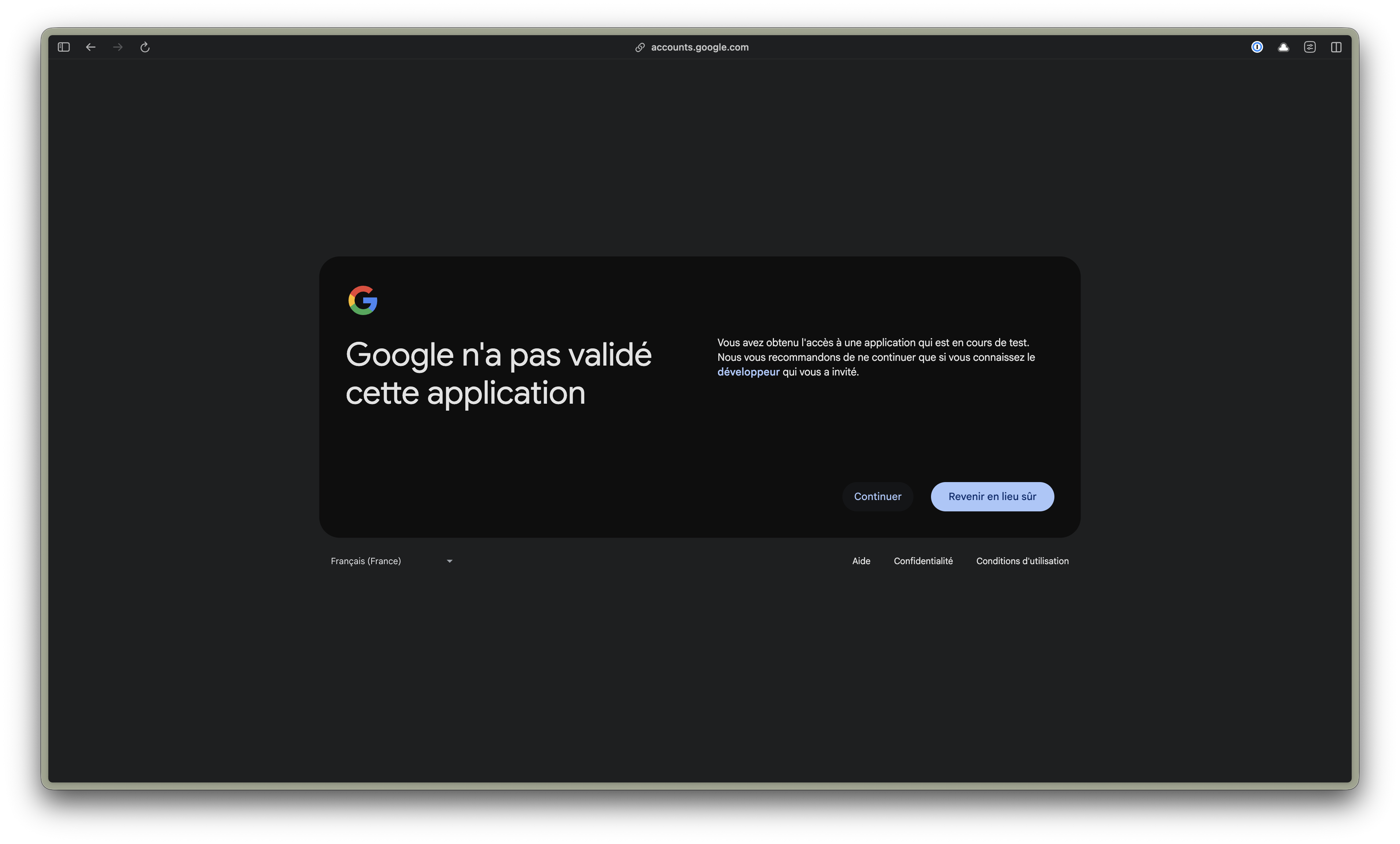
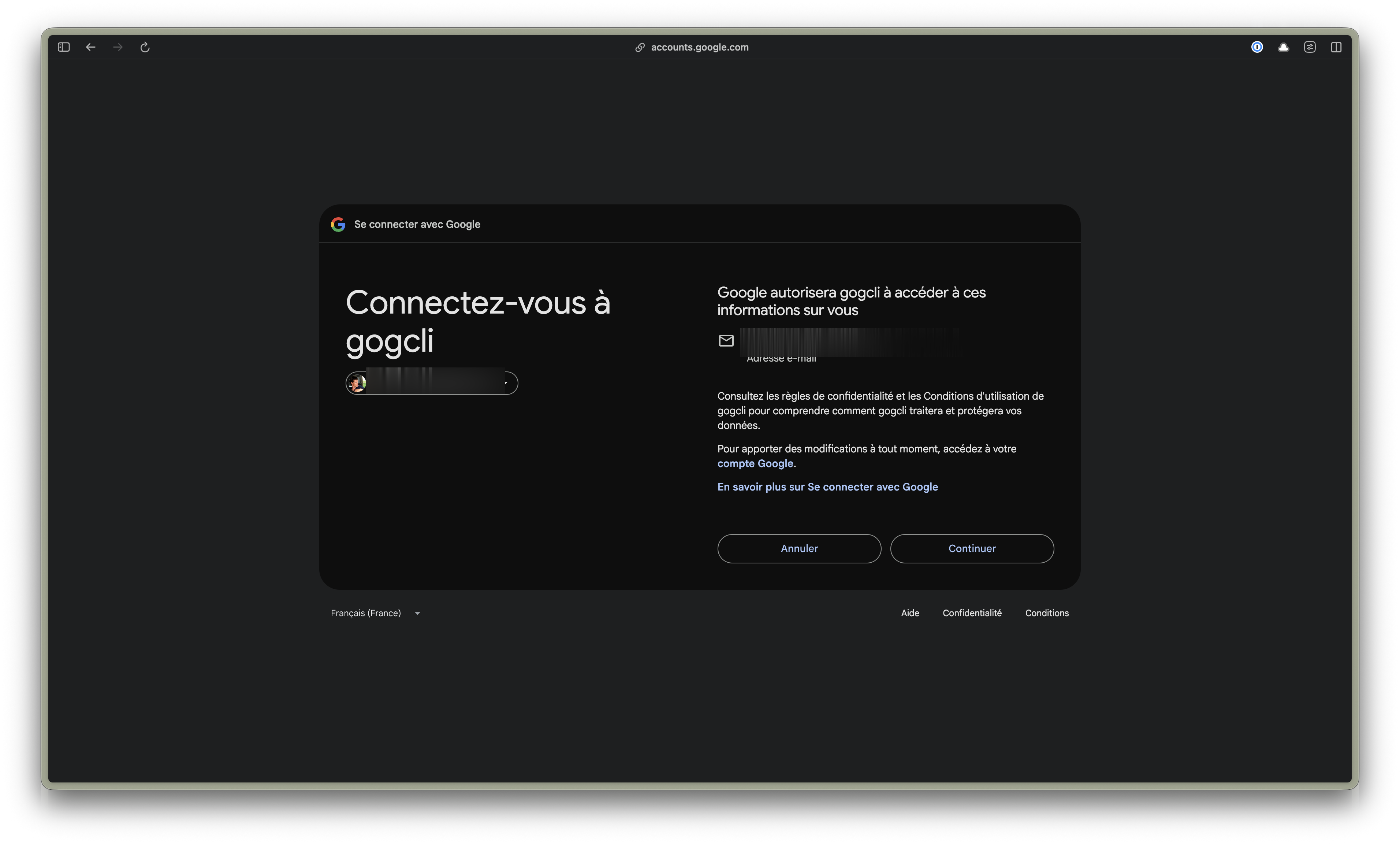
You finally land on the usual authorization screen:
7. Verify
gog auth list
# perso@gmail.com         perso   docs,drive   …   oauth
# work@your-domain.com    gybe    …             …   oauth

# And a real call, targeting the right account + client:
gog docs cat <DOC_ID> -a perso@gmail.com --client perso
From there, target each command with -a <email> --client <name>.
The two 403 errors worth knowing
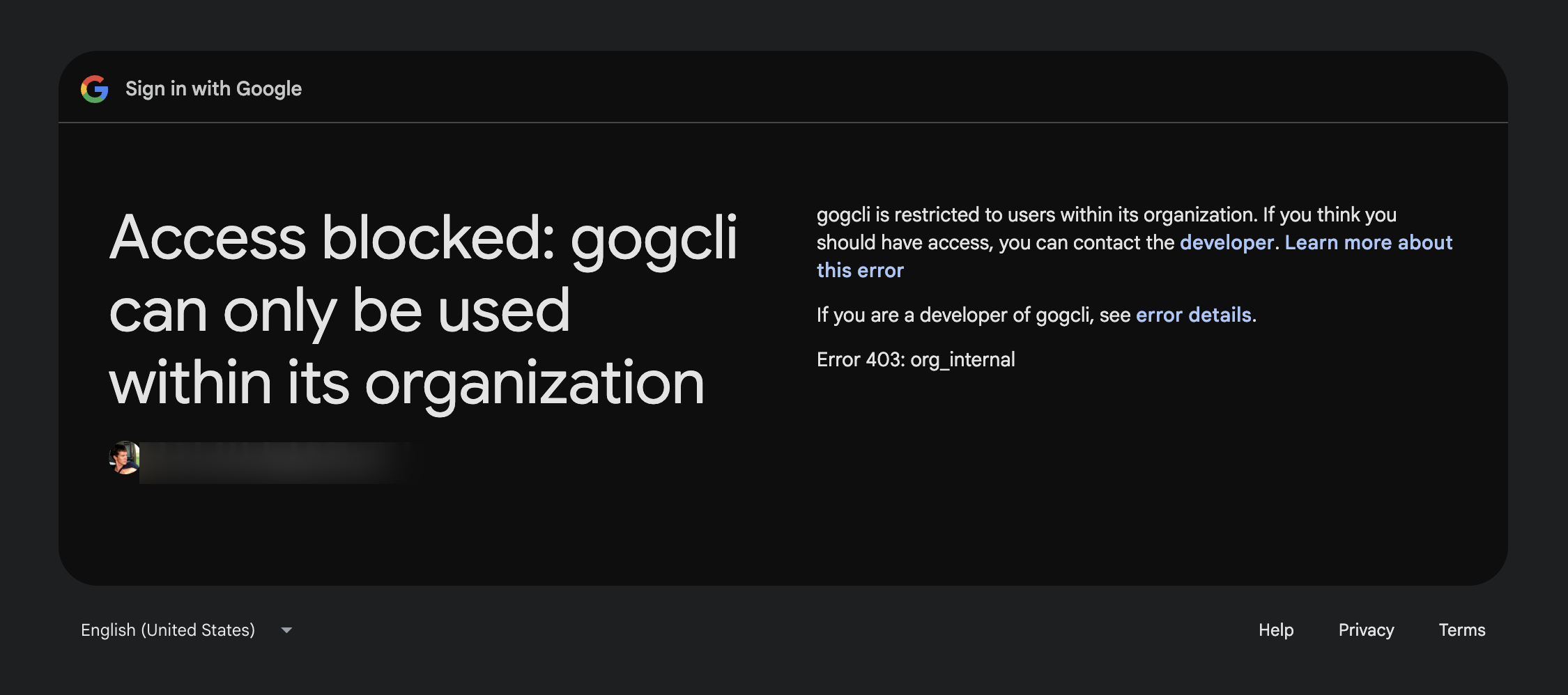
Error 403: org_internal — "gogcli can only be used within its organization". The OAuth client is in "Internal" mode. A personal account will never be able to use it: you need an "External" client (step 3) or a dedicated one.
Error 403: access_denied — "can only be accessed by developer-approved testers". The app is "External" but the account isn't in the test users. Add it (step 5); allow 1-2 minutes for propagation.
What's still pending
- The refresh token expires after 7 days as long as the app stays in "Test" status. For regular use, publish the app to Production (the Publish app button on the Audience tab) — the "unverified" warning remains for sensitive scopes, but the token stops expiring.
- One OAuth client per account adds a bit of config (
account_clients). For a few accounts it's invisible; beyond that, an alias per account avoids retyping--clientevery time (gog auth alias). - The scopes requested here (
docs,drive) are the minimum for my case. Addgmail,calendar, etc. as needed —gog auth serviceslists them all.